Instagram ads: give the product a clear first view
Look at what people see first and how the product is introduced. Then choose the shots and copy you'd need for your own version.
Keep the visual question specific
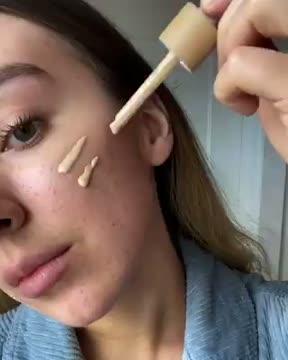
Open on the action
The retained film opens on a dropper applying tinted liquid to a cheek, followed by hand blending and face views. Its ending contains a shop/product card, domain and ILIA name. The preview is a short silent opening snippet.
What to look for: Can a viewer recognize the action before the final product card?
Try this: Put the application view and final product/action card into separate shots. Verify your own facts before writing benefit copy.
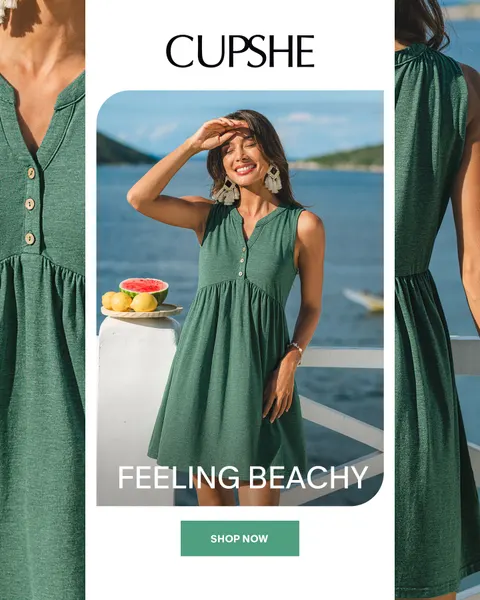
A central view and detail crops work together
Cupshe puts a dress wearing view in the middle, with garment detail crops beside it. The creative shows a composition, not a verified Feed, Story or Reels placement.
What to look for: Which detail adds information the main view cannot supply?
Try this: Give each crop a job and capture enough original coverage for the intended export.
Start with what the viewer needs to see. We compare an application opening with a whole-product view, then use those choices to build a brief for your own Instagram ad.
Check the first view at the size people will see it
A label that is readable on an editing monitor can disappear in a feed. Review the product and the main message at the intended placement size before approving the composition. Keep the actual placement specification beside the export decision.
Meta’s mobile-first guidance recommends communicating the story without relying on sound. Try a silent pass to check the visible explanation, then a separate listening pass for the delivery and claims. Each review catches a different problem.
Try it in your next brief
Pause your proposed opening at phone size. Ask a teammate what product or action they can identify without your explanation. If they need you to narrate the frame, change the view, the words or the order before adding more effects.
Further reading: Meta’s mobile-first creative guidance
Keep the visual question specific
ILIA shows the action first. Cupshe shows the product from different distances in 1 image. Use ILIA when you’re discussing how to introduce an action, and Cupshe when you need to explain what a closer view adds. We haven’t verified the original Instagram placement for either reference.
Plan the views for Feed, Stories and Reels
A placement choice affects product coverage, text space and the relationship to the destination. Refer to dated official specifications and review the actual interface before export. Keep a whole product view available so a tighter variant does not lose the detail the brief promised. Do not treat a crop as a new concept by itself.
A completed action-first brief
For the pouch assignment, open on a cable entering a compartment. Pull back to show the whole pouch and add the comb and bottle continuously. Retrieve the cable and end on the same layout with See the layout. We chose a vertical version for this exercise. That does not tell us where the reference ad ran. Product construction and fit must be verified on the actual sample.
Review picture, words and destination together
Film the whole pouch and the action close-up. Keep the same 3 items in each shot and place captions where they’re easy to read. Review the final export, then check the destination shows the same layout and promise.
Carry the brief beyond the reference set
Pass on the approved file, intended placement and product facts with the brief. Keep any missing source details in the notes. Before handing it over, ask someone to find the product and next step in the export without reading your brief. Use your own test results to decide what to change next.
Instagram Ads Manager: start from the campaign task
For Instagram campaign management, Meta’s official Ads Manager page is the documented starting point. Its public description covers creating ads, changing campaign settings and reading performance across Instagram and other Meta technologies. Follow its Go to Ads Manager entry when you need the actual service. Our research guide does not provide a separate Instagram ad-account login.
Confirm the authorized business and ad account before changing anything. Connect the approved creative, identity, destination and intended placements in the real campaign. A vertical export does not prove Instagram delivery. Use the actual placement preview and current account controls, then record what you reviewed. We did not sign in or test a campaign for this guide.
Business Suite is a different starting point for publishing
Meta describes Business Suite as a place to manage Facebook and Instagram activity, including creating or scheduling content, responding to messages and reading available insights. If your job is a content calendar or inbox review, begin with its current product page. Ads Manager is the more direct entry for the campaign setup described above.
Write the job before opening the tool: publish an approved post, respond to an inquiry, prepare a paid campaign or study another advertiser’s creative. That distinction keeps a publishing task from becoming an accidental paid launch. We reviewed the public descriptions, not a connected account, inbox or publishing action.
Searching for Facebook Creator Studio? Read the current article
On October 18, 2026, Meta’s help article titled About the Creator Studio app describes an iOS companion app for certain Facebook creators. It lists eligibility and account requirements. That article differs from older search-result wording about Creator Studio tools moving to Business Suite. We read the current body rather than treating the snippet as product instructions.
Read the Creator Studio article for that app and its stated eligibility. Use the Business Suite product page for its Facebook and Instagram publishing workflows. Use Ads Manager for paid campaigns. We have not installed or tested the Creator Studio app, verified eligibility for a particular account or evaluated its AI suggestions.
Use the worksheet
The completed example separates what we can see in the ads from our own plan. Use the blank worksheet for your product details, supporting sources and the people reviewing the work.
Start with the blank worksheet, or read the filled-in example to see how to use it. You can copy either one.